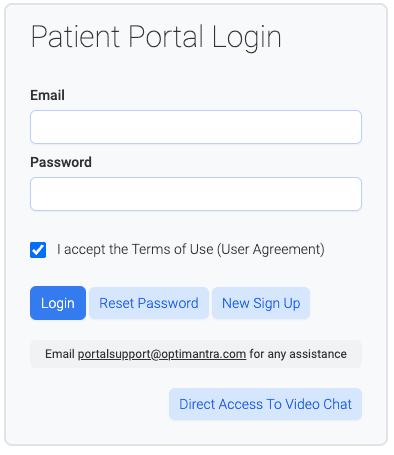
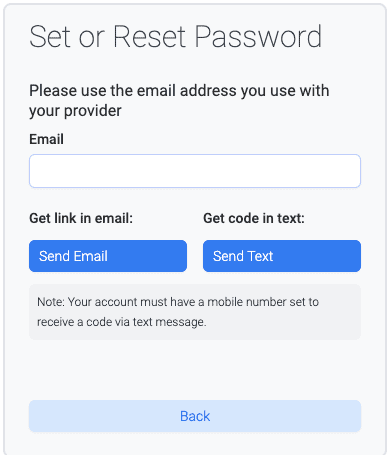
Enter your email address and select either “Send Email” or “Send Text” to receive a verification code. Be sure to use the email address that is on file for you at the clinic. That is the email address that the verification code will be sent to.
If you wish to receive the code by text, your cell phone number must be on file at the clinic.
Step 3
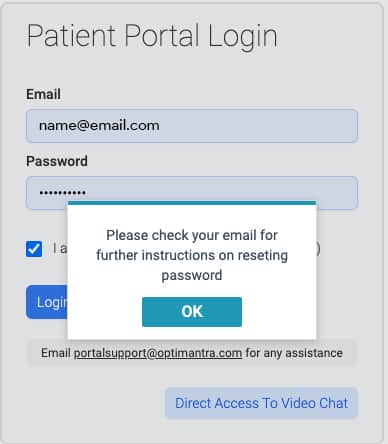
You will see a screen telling you to check for an email or text with instructions to reset the password. Click OK.
Step 4
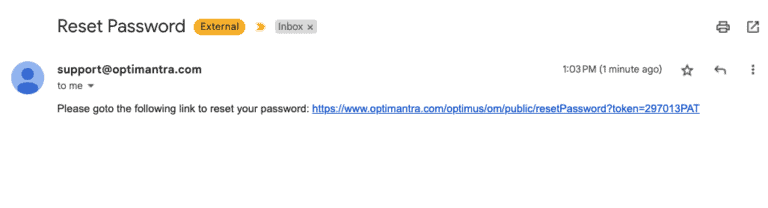
If you selected “Send email” in step 2 above, check your email in box for an email from support@optimantra.com. If you have selected “email” and you do not see an email from “support” in your inbox, be sure to check your spam box. If you selected “Send text”, check your cell phone messages.
The email or text you receive will have a “reset your password” link.
Click that link.
Step 5
You will be brought to a “Reset Password” screen asking for your email address and new password.
Enter your email address. Then enter the password you wish to use in both the “New Password” and “Confirm New Password” fields. Please make sure that the password you select meets the system security requirements. Your password must have at least eight characters with a combination of upper and lower case letters, symbols, and numbers.
When you have created and confirmed your password, click “Reset My Password”. The system will recognize that you have created a password.
Step 6
You will then get a message on that screen saying that your password is reset and asking you to log in using the password you created. Click “OK”.
This will take you back to the login screen.
Step 7
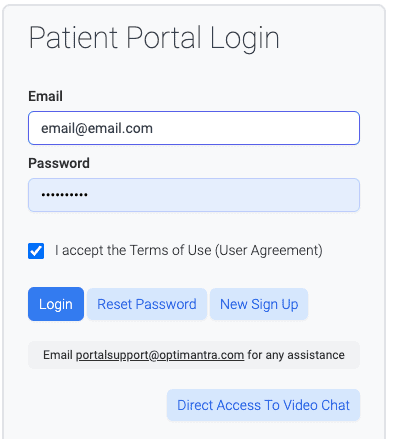
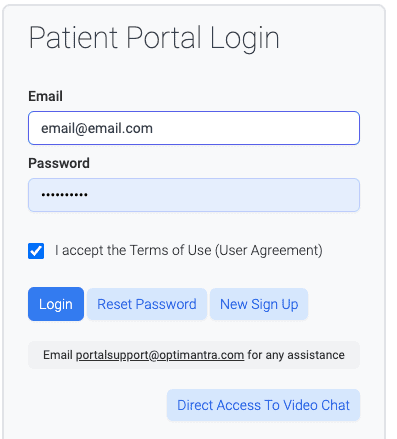
On the patient login screen, enter your email address and password and click “Login”.
Step 8
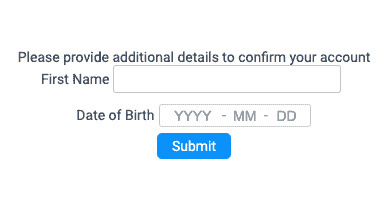
If there is more than one patient associated with the email address (such as a parent and children), you will then get a screen asking you to verify whose portal you want to enter by entering the first name and birth date.
Enter the information and click “Submit”. It is important that the information you enter on this screen matches the information on file. For instance, if the first name on file is “Joseph” and you enter “Joe”, the system cannot verify the identity and access will be denied.
Upon successful validation of the first name and date of birth, you will enter the portal for that patient.
Logging Out
You’ll find the logout button at the top right corner of the portal.
When you are ready to leave the patient portal, we strongly recommend that you log out, rather than just closing the browser. This helps to preserve the confidentiality of your information.
Logging Into the Portal
Logging Into the Portal
Follow these instructions if you have already signed up for the patient portal and are ready to log in.
Step 1
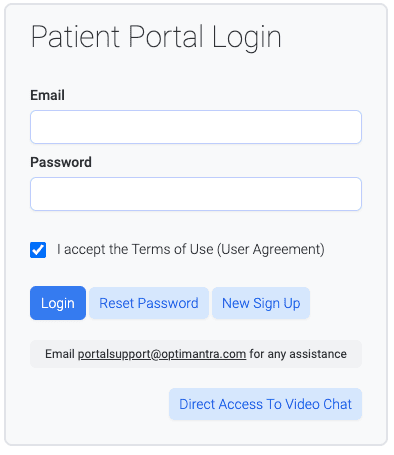
Click the “sign in” button below. You will be taken to a screen that asks for your email address and password.
Note: If you are logging into the Patient Portal for the first time, please follow the “Signing Up for the Portal” instructions found on this page.
Step 2
Enter your email address and password and click “Login”.
Step 3
If there is more than one patient associated with the email address (such as a parent and children), you will then get a screen asking you to verify whose portal you want to enter by entering the first name and birth date.
Enter the information and click “Submit”. It is important that the information you enter on this screen matches the information on file. For instance, if the first name on file is “Joseph” and you enter “Joe”, the system cannot verify the identity and access will be denied.
Upon successful validation of the first name and date of birth, you will enter the portal for that patient.
Logging Out
You’ll find the logout button at the top right corner of the portal.
When you are ready to leave the patient portal, we strongly recommend that you log out, rather than just closing the browser. This helps to preserve the confidentiality of your information.
Features of the Portal
Features of the Patient Portal
Within the patient portal, you will find a number of sections that you can click on to view the content.
You will be able to update your information, sign consent forms, message Dr. Nowazek, view your treatment plan, and much more.
Home screen
In the centre screen is a link to your current patient profile.
On the left hand side of the home screen, there is a menu of links to the various features of the patient portal.
Documents & Handouts
This area of the portal contains two types of documents:
The “Your Documents” section contains Information that is patient-specific such as lab test results and other medical records, diet plans.
This is also the section where you can upload information to the doctor such as lab results, medical images (x-rays, CT scans, MRIs), prescriptions, photographs, dental records, insurance cards. A full list of the types of documents and/or images that you feel would be helpful to the doctor is shown in a dropdown from “Record Type”.
Any documents uploaded must be in pdf format and any photographs must be in jpeg or jpg format. This is to ensure that the documents and photographs are clear and legible.
The “Your Handouts” section contains downloadable/printable general health-related pdf’s. These are not specific to a patient’s treatment plan, but are for general information only.
Messages
This feature is for secure direct communication between patient and doctor.
If you have any questions or concerns about your treatment plan we encourage you to contact us.
We will usually respond to your questions within 24 to 48 business hours. We do not respond during evenings, weekends and holidays. The messages portion of the patient portal is deactivated when the doctor is on holiday.
Simple questions about your treatment plan such as whether a supplement should be taken with meals or between meals, whether or not you should eat a particular food, or how much water you should drink each day can often be quickly resolved. There is no cost to deal with simple questions.
Lengthy and involved questionswhere the doctor has to review your file in more detail or do additional research, you will be charged for the doctor’s time to answer your question(s).
Complex Medical Matters such as new symptoms, worsening symptoms, new prescription medications, a reaction to a treatment plan, or a health aspect not previously discussed with your Green Apple Health Care doctor often cannot be properly assessed through the simple question answering systems. Any complex Medical Matters or matters that necessitate a medical assessment will require a consultation so that they can be properly evaluated.
Treatment Plans
This section provides a downloadable/printable copy of your treatment plans by date.
Superbills
The “All Superbills” dropdown provides a pdf copy of invoices issued to you for consultations, treatments, lab tests and/or supplements. Each invoice clearly identifies charges that are generally covered by private insurance (such as consultations and treatments) and those that are generally not covered by private insurance (such as supplements).
Manage Appointments
This section allows you to view current appointments or book a new appointment online. You can also book an appointment online from the Green Apple Health Care website here. Our website page also includes detailed instructions on how to book an appointment online.
Health Apps
This section contains a link to the FitBit sign in page. Green Apple Health Care does not currently use FitBit for any of our patients. The link to this app is provided only as a convenience to FitBit subscribers.
Logout
Click this button to log out of your patient portal.
Troubleshooting Access
Troubleshooting Access to the Patient Portal
If you are having trouble logging in, please check the following:
The Patient Portal is a section of the Optimantra operating system used at the clinic. The log-in information you enter (your email address, your first name, and your date of birth) must correspond exactly with your patient file information. Please be sure that the information you enter in the Patient Portal log-in screens is identical to the information we have in your patient file.For instance, if the name on file is “Christine” and you enter “Chris”, the system won’t recognize you.Be sure that the email address you entered is correct. If it contains errors such as “. con” instead of “.com”, the system won’t recognize it. Punctuation is also important. If the email address is john.doe@ and you enter johndoe@, the system will deny access.
The password is case-sensitive. Be sure to enter your password with upper and lower case as appropriate.
Do not add spaces before or after your email address, first name, etc. The system sees the spaces as characters
If you are newly establishing access to the portal and have not received a reset password from support@optimantra.com, please wait a few moments and then check your spam box.
If possible, please use Chrome browser to log in. The browser should be updated and cleared:
Clear your browser’s cache
Be sure you have the latest version of Chrome for your operating system
Remove any Chrome extensions that are not in use
Restart Chrome
If you’re still having difficulty, please take screenshots of every step you’re taking to log in and every response you get and email those to portalsupport@optimantra.com with a copy to admin@greenapplehealthcare.ca with as much information as possible including confirmation that you’ve performed steps 1 through 5 above.
Enter your email address and select either “Send Email” or “Send Text” to receive a verification code. Be sure to use the email address that is on file for you at the clinic. That is the email address that the verification code will be sent to.
If you wish to receive the code by text, your cell phone number must be on file at the clinic.
Step 3
You will see a screen telling you to check for an email or text with instructions to reset the password. Click OK.
Step 4
If you selected “Send email” in step 2 above, check your email in box for an email from support@optimantra.com. If you have selected “email” and you do not see an email from “support” in your inbox, be sure to check your spam box. If you selected “Send text”, check your cell phone messages.
The email or text you receive will have a “reset your password” link.
Click that link.
Step 5
You will be brought to a “Reset Password” screen asking for your email address and new password.
Enter your email address. Then enter the password you wish to use in both the “New Password” and “Confirm New Password” fields. Please make sure that the password you select meets the system security requirements. Your password must have at least eight characters with a combination of upper and lower case letters, symbols, and numbers.
When you have created and confirmed your password, click “Reset My Password”. The system will recognize that you have created a password.
Step 6
You will then get a message on that screen saying that your password is reset and asking you to log in using the password you created. Click “OK”.
This will take you back to the login screen.
Step 7
On the patient login screen, enter your email address and password and click “Login”.
Step 8
If there is more than one patient associated with the email address (such as a parent and children), you will then get a screen asking you to verify whose portal you want to enter by entering the first name and birth date.
Enter the information and click “Submit”. It is important that the information you enter on this screen matches the information on file. For instance, if the first name on file is “Joseph” and you enter “Joe”, the system cannot verify the identity and access will be denied.
Upon successful validation of the first name and date of birth, you will enter the portal for that patient.
Logging Out
You’ll find the logout button at the top right corner of the portal.
When you are ready to leave the patient portal, we strongly recommend that you log out, rather than just closing the browser. This helps to preserve the confidentiality of your information.
Note: If you are logging into the Patient Portal for the first time, please follow the “Signing Up for the Portal” instructions found on this page.
Step 2
Enter your email address and password and click “Login”.
Step 3
If there is more than one patient associated with the email address (such as a parent and children), you will then get a screen asking you to verify whose portal you want to enter by entering the first name and birth date.
Enter the information and click “Submit”. It is important that the information you enter on this screen matches the information on file. For instance, if the first name on file is “Joseph” and you enter “Joe”, the system cannot verify the identity and access will be denied.
Upon successful validation of the first name and date of birth, you will enter the portal for that patient.
Logging Out
You’ll find the logout button at the top right corner of the portal.
When you are ready to leave the patient portal, we strongly recommend that you log out, rather than just closing the browser. This helps to preserve the confidentiality of your information.
Within the patient portal, you will find a number of sections that you can click on to view the content.
You will be able to update your information, sign consent forms, message Dr. Nowazek, view your treatment plan, and much more.
Home screen
In the centre screen is a link to your current patient profile.
On the left hand side of the home screen, there is a menu of links to the various features of the patient portal.
Documents & Handouts
This area of the portal contains two types of documents:
The “Your Documents” section contains Information that is patient-specific such as lab test results and other medical records, diet plans.
This is also the section where you can upload information to the doctor such as lab results, medical images (x-rays, CT scans, MRIs), prescriptions, photographs, dental records, insurance cards. A full list of the types of documents and/or images that you feel would be helpful to the doctor is shown in a dropdown from “Record Type”.
Any documents uploaded must be in pdf format and any photographs must be in jpeg or jpg format. This is to ensure that the documents and photographs are clear and legible.
The “Your Handouts” section contains downloadable/printable general health-related pdf’s. These are not specific to a patient’s treatment plan, but are for general information only.
Messages
This feature is for secure direct communication between patient and doctor.
If you have any questions or concerns about your treatment plan we encourage you to contact us.
We will usually respond to your questions within 24 to 48 business hours. We do not respond during evenings, weekends and holidays. The messages portion of the patient portal is deactivated when the doctor is on holiday.
Simple questions about your treatment plan such as whether a supplement should be taken with meals or between meals, whether or not you should eat a particular food, or how much water you should drink each day can often be quickly resolved. There is no cost to deal with simple questions.
Lengthy and involved questionswhere the doctor has to review your file in more detail or do additional research, you will be charged for the doctor’s time to answer your question(s).
Complex Medical Matters such as new symptoms, worsening symptoms, new prescription medications, a reaction to a treatment plan, or a health aspect not previously discussed with your Green Apple Health Care doctor often cannot be properly assessed through the simple question answering systems. Any complex Medical Matters or matters that necessitate a medical assessment will require a consultation so that they can be properly evaluated.
Treatment Plans
This section provides a downloadable/printable copy of your treatment plans by date.
Superbills
The “All Superbills” dropdown provides a pdf copy of invoices issued to you for consultations, treatments, lab tests and/or supplements. Each invoice clearly identifies charges that are generally covered by private insurance (such as consultations and treatments) and those that are generally not covered by private insurance (such as supplements).
Manage Appointments
This section allows you to view current appointments or book a new appointment online. You can also book an appointment online from the Green Apple Health Care website here. Our website page also includes detailed instructions on how to book an appointment online.
Health Apps
This section contains a link to the FitBit sign in page. Green Apple Health Care does not currently use FitBit for any of our patients. The link to this app is provided only as a convenience to FitBit subscribers.
Logout
Click this button to log out of your patient portal.
If you are having trouble logging in, please check the following:
The Patient Portal is a section of the Optimantra operating system used at the clinic. The log-in information you enter (your email address, your first name, and your date of birth) must correspond exactly with your patient file information. Please be sure that the information you enter in the Patient Portal log-in screens is identical to the information we have in your patient file.For instance, if the name on file is “Christine” and you enter “Chris”, the system won’t recognize you.Be sure that the email address you entered is correct. If it contains errors such as “. con” instead of “.com”, the system won’t recognize it. Punctuation is also important. If the email address is john.doe@ and you enter johndoe@, the system will deny access.
The password is case-sensitive. Be sure to enter your password with upper and lower case as appropriate.
Do not add spaces before or after your email address, first name, etc. The system sees the spaces as characters
If you are newly establishing access to the portal and have not received a reset password from support@optimantra.com, please wait a few moments and then check your spam box.
If possible, please use Chrome browser to log in. The browser should be updated and cleared:
Clear your browser’s cache
Be sure you have the latest version of Chrome for your operating system
Remove any Chrome extensions that are not in use
Restart Chrome
If you’re still having difficulty, please take screenshots of every step you’re taking to log in and every response you get and email those to portalsupport@optimantra.com with a copy to admin@greenapplehealthcare.ca with as much information as possible including confirmation that you’ve performed steps 1 through 5 above.